Transcribe meetings as a guest. Teams, Zoom, any app – without bots
Turn any meeting into text with Live Recording Transcription
AI workflow for call transcription and meeting summarization
With RiverScript Desktop client, you can transcribe a previously recorded meeting or record system audio while the meeting is happening and convert it to text afterwards. RiverScript captures any sound playing on your computer, no matter which app it comes from. This means you can join a webinar simply as a participant and get a full transcript, even if you are not the host.
RiverScript also has a web version, but for meeting transcription we recommend using the desktop app. It processes large, long recordings 3–5 times faster and can capture your computer’s internal audio with Live Recording Transcription. Browsers simply do not allow websites to provide this kind of functionality.
RiverScript is a complete workflow for transcribing Zoom, Teams, Google Meet, and virtually any other meeting using AI models. It can also translate transcripts into 100 languages and generate a summary of the entire recording. You can translate a transcript into Spanish, French, or any other supported language. You can also use the AI chat to find important information in the recording – ask questions about what was said, and it will answer based on the content.
The client works on both Mac and Windows. You can get it from the download page.
A guide to transcribing meetings with RiverScript for every need
To get started, you can first read how to install RiverScript and record system audio using our guides for Windows and Mac.
Before recording a group call with Live Recording or uploading an existing audio or video files for transcription, decide what kind of result you need: plain text or a transcript with timestamps. Choose the right settings using the guidance below, then start recording or upload your files.
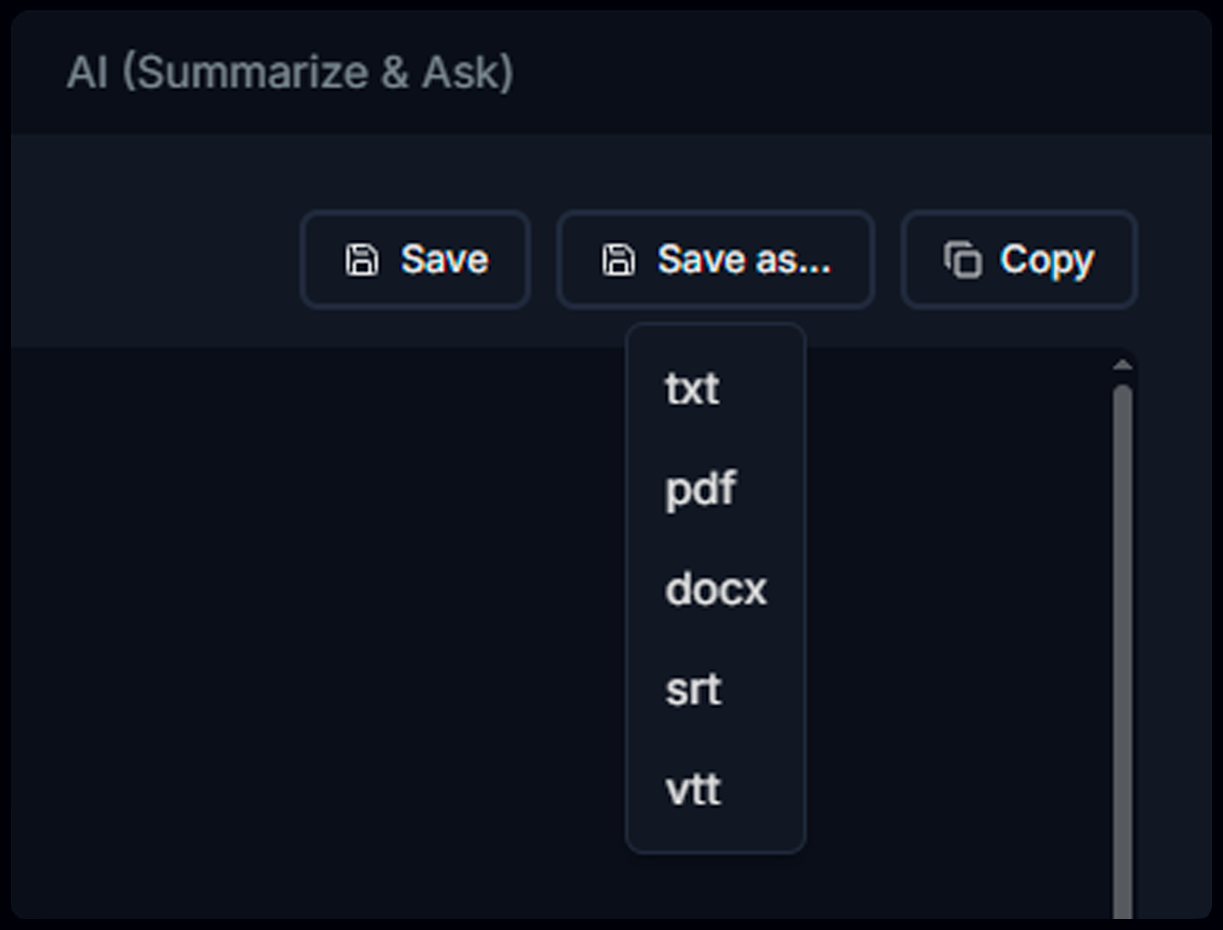
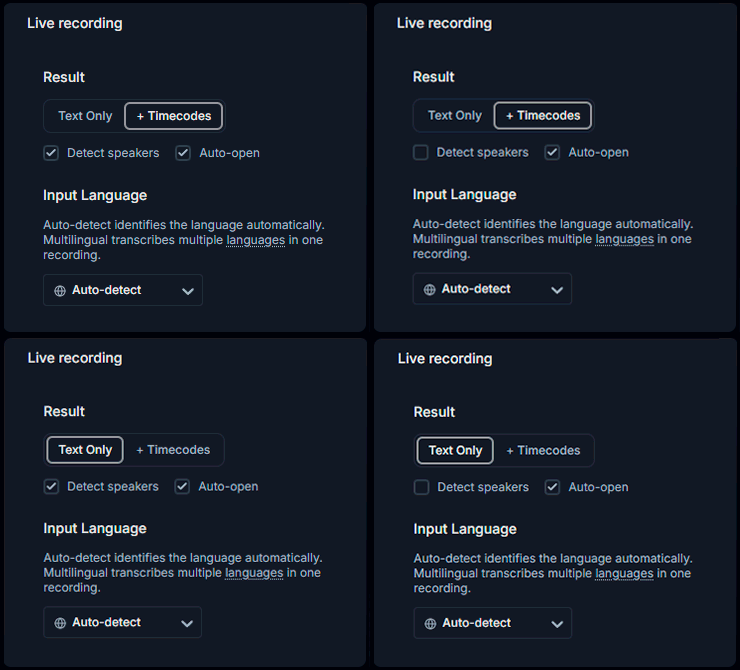
I. Do you just need clean, readable text? Perhaps you have a recording of a university lecture, or a webinar that you are going to record later. Do you want the final transcript as a PDF, TXT, or DOCX file?
In these cases, select Text only in the Result field. The Auto open option simply controls whether a transcript opens automatically once it is ready. Selecting the spoken language can improve accuracy compared with automatic language detection.
II. Are you planning to transcribe an interview or a focus group session? Does your recording include several speakers you want to tell apart? Would you also like to label them with their names? Do you want to save the final transcript as a PDF, TXT, or DOCX file?
If any of these apply to you, select Text only in the Result field, then enable Detect speakers. Make sure the checkbox is selected before you start recording or upload your file.
Note that the Detect speakers option is available only to users on the Premium plan.
III. Do you want to use the transcript on podcast platforms such as Apple Podcasts, Spotify, or SoundCloud? Or upload it to your YouTube channel as subtitles? Do you need captions? Would you like the final file in VTT or SRT format?
For any of these options, select Timecodes in the Result field.
IV. Is your ideal result somewhere between options II and III? Do you need both timestamps for subtitles and speaker detection, also known as diarization? Would you like the final result in VTT or SRT format, or do you also want to save it as a PDF, TXT, or DOCX file?
In that case, select Timecodes in the Result field, then enable the Detect speakers option. Make sure the checkbox is selected before you start recording or upload your file.
The Detect speakers option is available only to users on the Premium plan.
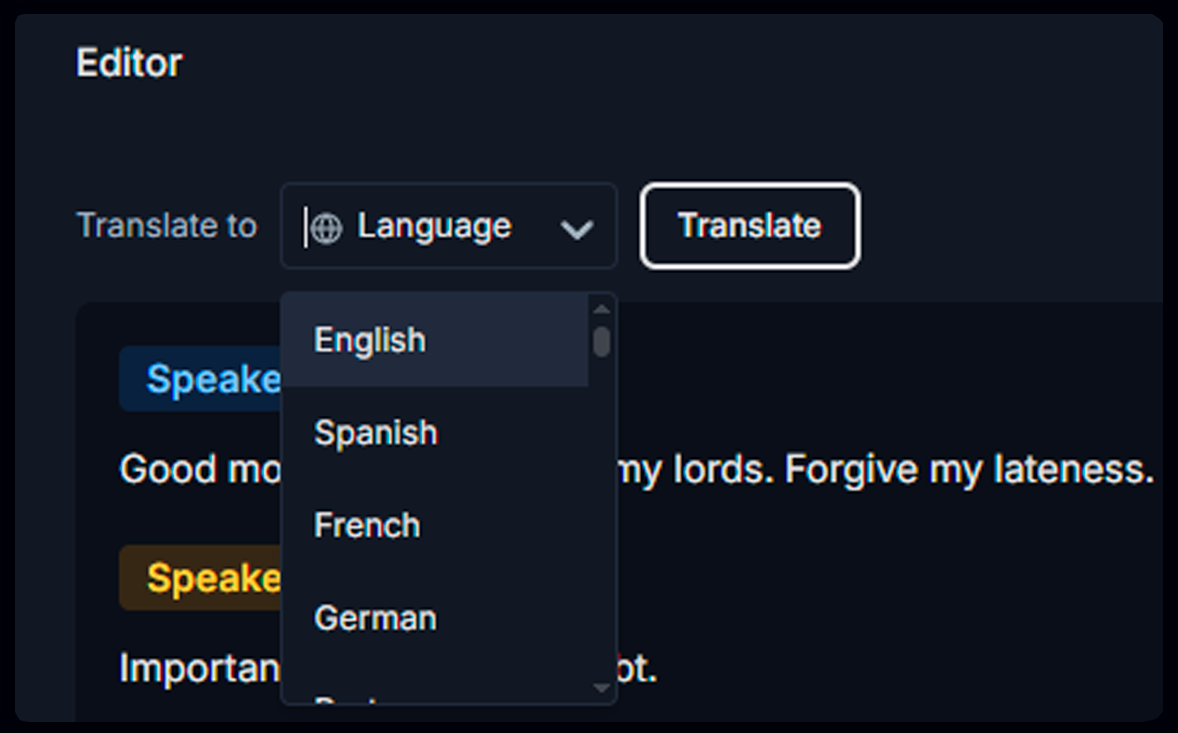
Whatever result you need, you can always download it as a PDF, TXT, or DOCX file, or simply copy it from the editor and paste it anywhere. You can also translate the transcript into many languages with AI-quality translation. In addition, you can ask the AI chat to summarize your Google Meet session, extract terms and quotes, or even find every mention of a specific name.
You can also share the transcript or translation directly with anyone using the Share button. However, VTT and SRT downloads are available only if you selected Timecodes in the Result field.
During Live Recording Transcription, you can record and later transcribe either only the people on the other side of the screen using system audio, or both them and your microphone. If both audio sources are enabled, they are automatically mixed into a single track. You can turn microphone recording on and off at any time during Live Recording. Read more about this in the guide here.
RiverScript vs. third-party meeting bots and assistants
RiverScript is complete all-in-one AI software, unlike outdated third-party bots and meeting assistants that join your calls as separate participants. You can read more about how these tools work here.
RiverScript is designed so that any attendee, not just the host, can get a high-quality meeting transcript. It does not matter which app you use for the call or what you want to record. RiverScript does not control your account, join the meeting on your behalf, or install anything in your browser. You run RiverScript on your own computer and decide when to turn it on.
RiverScript engineers built a hybrid transcription architecture that synchronizes speech recognition models from ElevenLabs, OpenAI, and Deepgram. This makes it possible to achieve a level of transcription accuracy that most solutions on the market cannot offer. Instead of getting a wall of raw text, you get a high-quality transcript with proper grammar and punctuation, speaker separation, and ChatGPT-quality translation into 100 languages.
RiverScript also does not use your transcripts for so-called “service quality improvements” – in other words, to train AI models. Transcripts are stored in Hetzner Cloud data centers in Helsinki, Finland, and are accessible only to the user, who can delete them at any time. Audio files are deleted automatically after seven days. When you use RiverScript Desktop client, recorded and uploaded audio files are also stored on your computer.
If you already use a transcript generator that works as a bot or browser extension, take a look at its Privacy Policy. There is a good chance you will discover that the company reserves the right to use your content for AI training. The situation is even worse with bots and assistants that offer supposedly unlimited free transcription. You are most likely paying for those services with your transcripts and audio, because unlimited free transcription simply does not exist. RiverScript does not exploit your data or use it for anything other than providing the service to you.
F.A.Q.
Turn Zoom calls, Microsoft Teams classes, or Google Meet interviews into text
Install RiverScript Desktop client. Transcribe meetings as a guest.