How to record system audio on Microsoft Windows 10 & 11
Guide to recording computer audio on Windows OS devices
Audio recording program for devices running Windows
Reddit users often share tips on how to record internal system audio, such as how to record audio from Chrome or from any other application. In many cases, they recommend Audacity, perhaps because there are few convenient and feature-rich audio recorders available today. We introduce RiverScript Desktop client — a workflow that also includes a built-in recorder for voice and sound on PC, allowing you to record any output audio playing on your computer. Audio recording in RiverScript is free and unlimited (except for the maximum recording length of 4 hours per recording), and a free account is all you need to capture internal audio.
You can download the Windows version of RiverScript Desktop client, which includes a built-in internal audio recorder, for free from the download page. The software can record streaming audio or sound from any video up to 4 hours long. The client works on desktop computers, laptops, and devices such as Microsoft Surface Pro, Microsoft Surface Laptop, Dell, Acer, ASUS, MSI, HP, Samsung, and Lenovo.
RiverScript Desktop is an all-in-one software solution with many features, including smart AI capabilities. It records internal audio on Windows using the Live Recording feature. If needed, you can then transcribe the recorded speech into text and translate it into more than 100 languages using AI.
How to capture internal audio on Windows 10 & 11
To use the Live Recording feature, download the installer and install the application on your PC. Then open RiverScript and sign in using your Google account or email address. You are now ready to start recording your computer's internal audio.
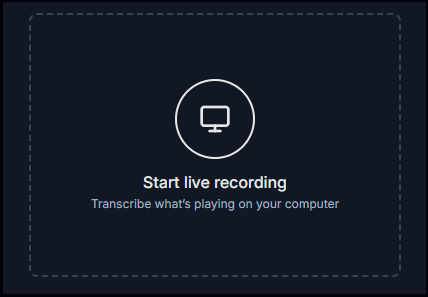
- Choose the Live Recording tab in the left sidebar, then click the Start button in the center of the Recording window. RiverScript will now record everything you hear on your computer, including system audio from YouTube, your browser, or any other application running on your PC.
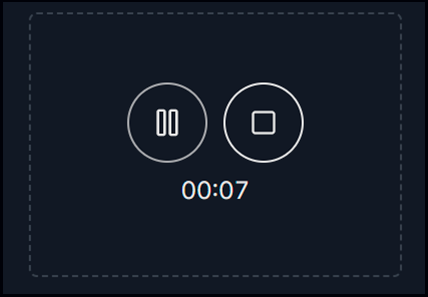
- If needed, click the Pause button to pause the recording and resume it later when you're ready. When your recording is complete, click the Stop button.
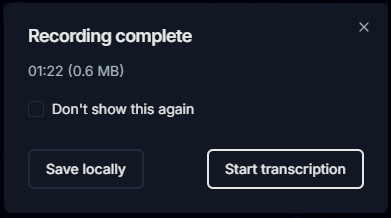
- To save the captured audio to your PC, click the Save locally button. Your recording has now been saved.
In addition to audio recording, RiverScript includes many useful features, such as AI-powered transcription. If you would like to use the transcript generator free, click the Start transcription button.
How to install RiverScript Desktop client on Windows 10 & 11 to record system audio
Download and open the installer from the download page.
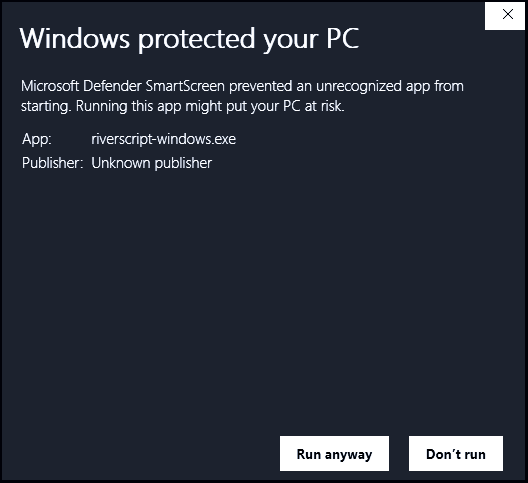
- If Windows displays the message: "Microsoft Defender SmartScreen protected your PC". Click More info, then click the Run anyway button.
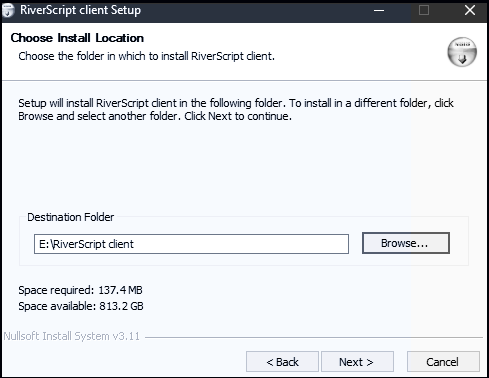
- When the RiverScript Setup window opens, click Next and choose the folder where you want to install the app.
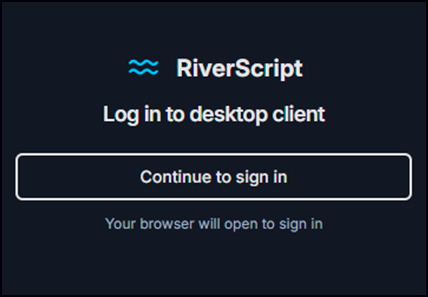
- Sign in to the Desktop client to start recording and transcribing audio. The application is now ready to use.
Advantages of RiverScript Desktop client for Microsoft Windows
- Record audio from a browser and other programs such as Teams, Zoom, and Google Meet and convert it into text.
- Record group and private calls, podcasts, and interviews.
- Quickly converts recorded speech into text, including audio and video files up to 50 GB in size and several hours long. Isn't limited by the practical restrictions of browser-based uploads and reduces dependence on internet speed by compressing files before uploading them to the server.
- Identifies different speakers and automatically separates their speech.
- Adds timestamps and allows subtitles to be downloaded in SRT or VTT format for platforms such as YouTube, Apple Podcasts, and Spotify.
F.A.Q.
Record everything you hear on your Microsoft Windows device
Install RiverScript Desktop client. Capture sound on your PC.