Transcribe system audio on Microsoft Windows 10 & 11
Get accurate text with proper grammar and punctuation from any speech
Speech-to-Text software for Windows
RiverScript Desktop client is an AI-powered workflow for audio and video to text transcription for Windows 10 & 11, developed by Finnish software engineers. It is a European product with European-quality standards and strong data protection. RiverScript is a full-featured STT-converter service that includes tools such as Live Recording Transcription for up to 4 hours, accurate AI transcript translation with no character limits, as well as summarizing and AI chat about the content.
The Desktop client is available as a free download from the download page for laptops and desktop computers such as Dell, Acer, ASUS, MSI, HP, Samsung, and Lenovo. You can learn how to install the software on Windows OS and capture internal sound here: Guide to recording system audio on Windows OS. After reading the guide, you can return to this page to explore the transcription feature.
If you're using macOS, see: Transcribe internal audio on Mac.
How to transcribe internal audio on Windows 10 & 11
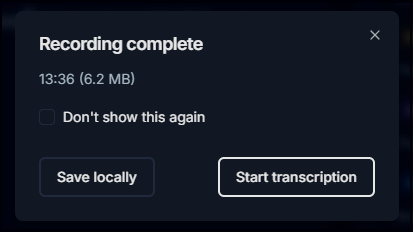
To start the transcription, open the Live Recording tab in RiverScript Desktop and, once the recording has finished, click Start transcription in the pop-up window. If you've recorded system audio but don't want to transcribe it right away, simply save the recording locally by clicking Save locally.
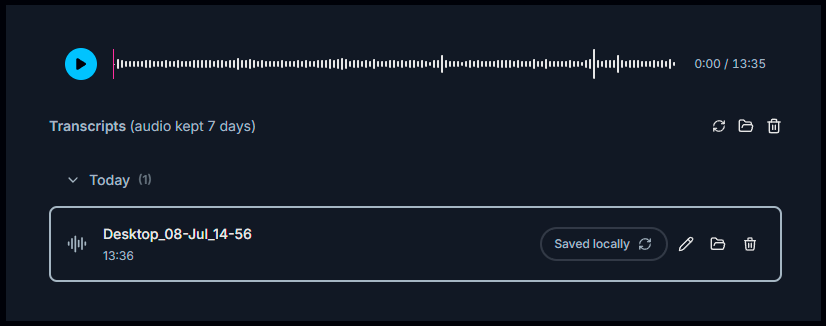
Save locally is also useful if, for example, you accidentally recorded the wrong audio or captured a recording that's longer than you want to transcribe. The recording will be saved on your computer, and you can transcribe it later.
You can also:
- rename the audio file,
- open the file's location,
- delete it if needed.
Simply click the corresponding icons next to the file name.
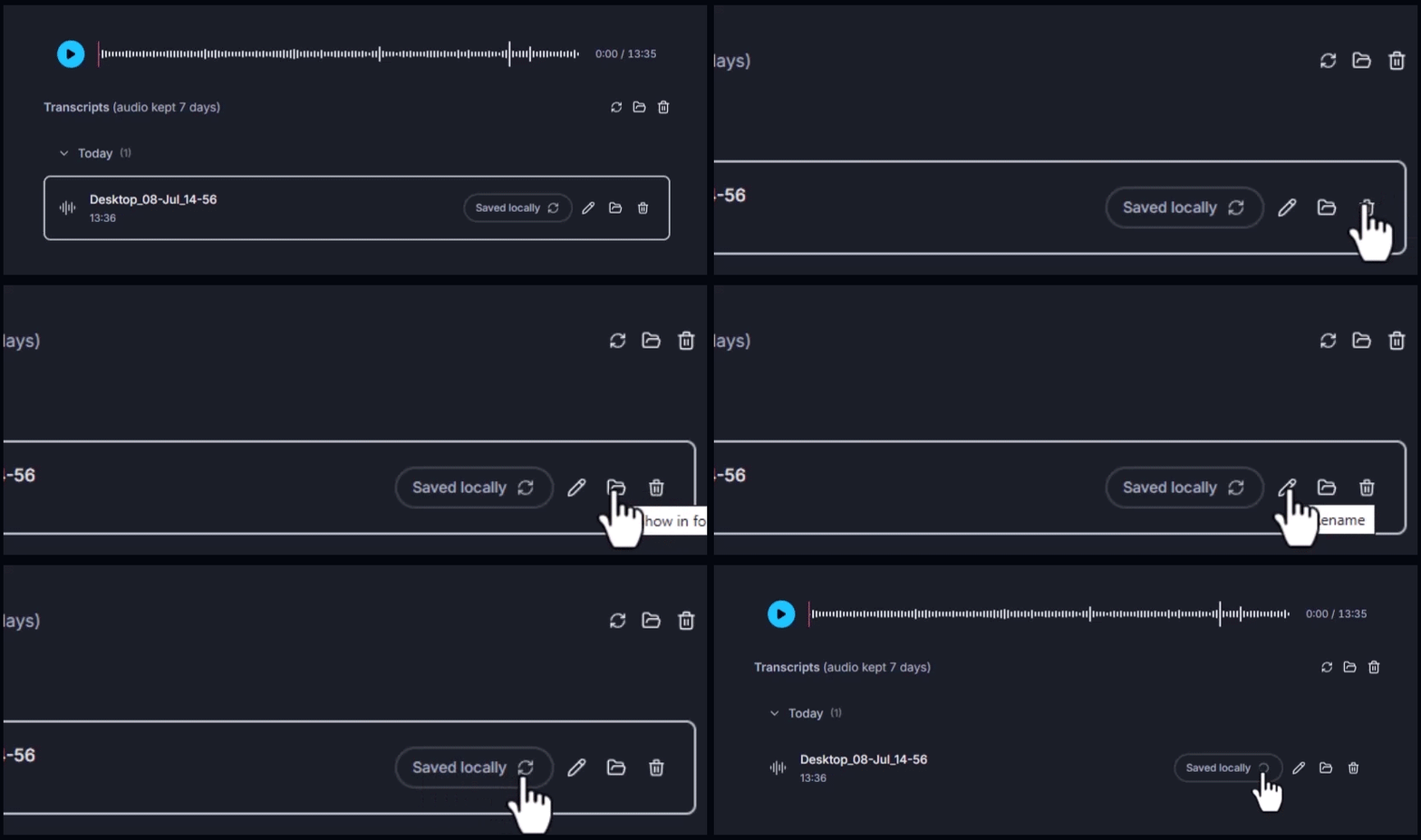
To convert a locally saved recording to text, click the Process button (↻ icon) next to the recording name. After a short time, the transcript will appear in the editor. You can edit it and export it in a variety of text formats.
Why users choose RiverScript
You can use RiverScript even when the audio or video you're transcribing contains sensitive information. For example, you can transcribe interviews for customer service quality assurance or scientific research. You can also convert speech from private calls into text and extract the key ideas from the conversation using our AI chat. If you're joining a Zoom, Teams, or another webinar or meeting as a guest, you can transcribe long group calls without connecting any bots.
RiverScript stores transcripts on secure Hetzner servers located in a Helsinki data center. Audio files are automatically deleted from RiverScript's servers 7 days after transcription. Files you've saved locally remain on your computer until you choose to delete them. RiverScript does not use audio files and transcripts to train AI models. The software also does not collect or store cookies for marketing purposes, which is why you only need an email address to sign in.
F.A.Q.
Transcribe everything you hear on your Microsoft Windows device
Install RiverScript Desktop client. Transcribe internal audio on your PC