Transcribe internal audio on Mac – capture and convert any system sound to text
Turn any audio into an accurate transcript with proper punctuation and grammar
Capture and convert internal audio or video to text on Mac
RiverScript Client is an all-in-one Mac desktop sound recorder and transcription software designed for MacBook Neo, MacBook Pro, MacBook Air, and other Apple devices. It lets you transcribe internal audio or video to text with recordings up to 4 hours long.
To ensure high-quality speech-to-text conversion, our developers built custom AI Sync Models by combining the best transcription technologies available with proprietary audio and text processing algorithms. As a result, converting system audio or video into text produces accurate output with proper grammar and punctuation.
Transcribe audio from the screen on any macOS device
The desktop version of RiverScript includes the Live Recording Transcription feature, which records and transcribes system audio, including speech from any source on Apple computers—whether it's a meeting, YouTube, Coursera, or anything else.
Transcription in the RiverScript desktop app is 3–5× faster because it isn't limited by the browser or internet speed. This is especially important if you need batch transcription or have to transcribe huge audio and video files. Video transcription can be many times faster than in the web app because the web app must upload the entire media file to the server, while the desktop app sends only the audio track.
The application is available as a free download from the download page for macOS 13 Ventura and later, making it fully compatible with macOS Sonoma, macOS Sequoia, and macOS Tahoe.
If you need to transcribe an existing QuickTime recording or any other recorded audio or video file, simply use RiverScript's uploaded file transcription feature.
For example, you can convert Voice Memos, screen recordings, and files in MP4, MOV, MKV, WebM, and many other formats into text. Audio and video files transcription is available in both the web and desktop versions of RiverScript, so if you need to get audio notes to text, even a smartphone is enough.
How to use RiverScript Mac transcription software to convert system sound to text
-
We recommend using the RiverScript desktop app if you need to convert files larger than 1 GB into text or process many files at once. Live Recording Transcription is available only in the desktop app. With this feature, you can transcribe group meetings in Teams or Zoom, as well as record and transcribe private calls in apps such as Telegram.
-
Sign in using your Google account or email. If you choose email, you'll receive a sign-in link that lets you authorize the desktop app with a single click. Once you're signed in, RiverScript Desktop is ready to record and transcribe everything you can hear on your computer.
-
You can read the guide on installing and using the app here: Guide to recording system audio on macOS.
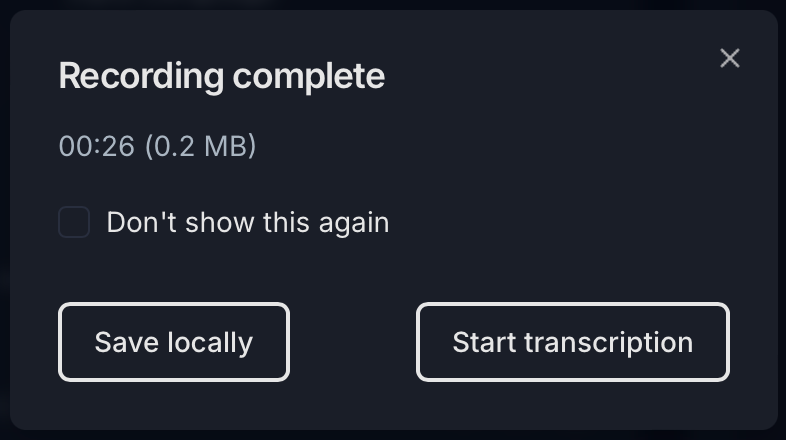
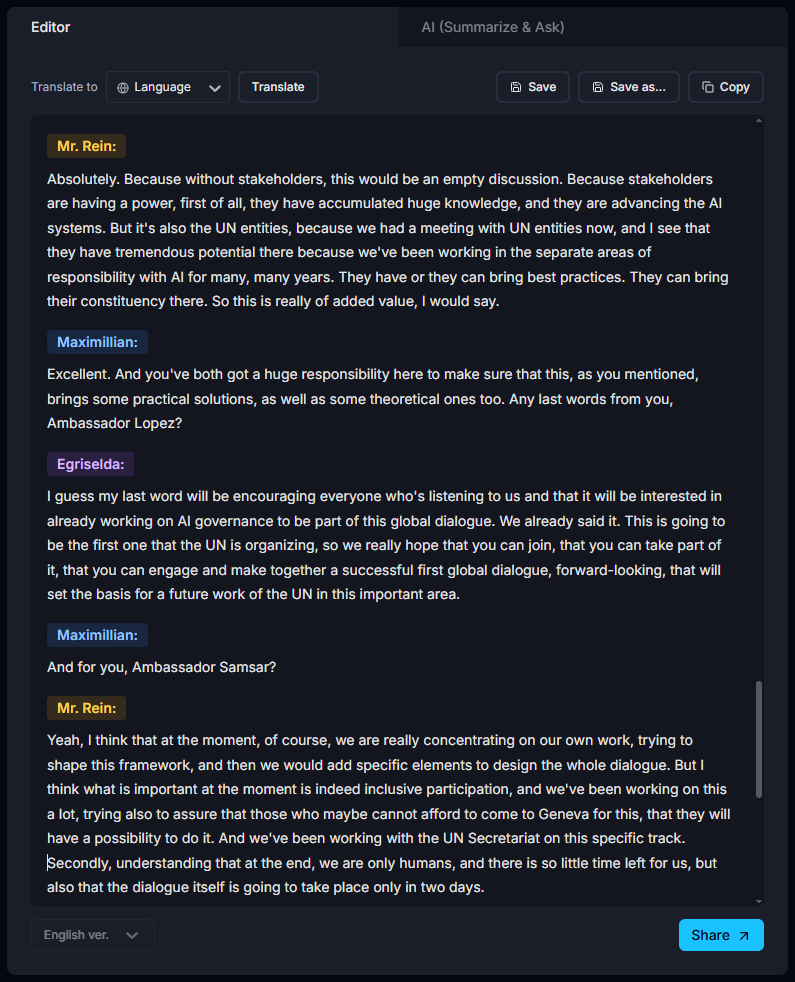
- First, start recording in the Live Recording tab. When you're finished, click Stop, then click Start transcription in the pop-up window. Once the AI model finishes transcribing the recording, your transcript will appear in the built-in editor. If you prefer, you can disable the pop-up window by checking the "Don't show this again" box.
-
The time required to convert your recording into text depends on the file size, recording length, and your subscription plan. Free Start users have lower processing priority and may need to wait while recordings from Pro and Premium subscribers are processed first. Once the transcript appears in the editor, you can edit it and export it as PDF, DOCX, or TXT.
You can also export your transcript as SRT or VTT subtitle files with timestamps, making it ready for YouTube videos or podcasts on Apple Podcasts and Spotify.
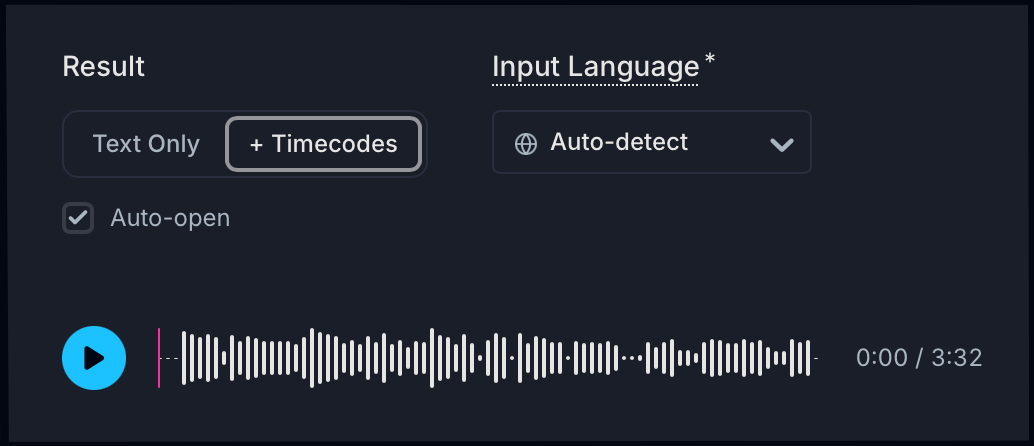
- If you only need plain text without timestamps, select Text Only in the Result menu before starting the transcription. If you need subtitles with timestamps, select +Timecodes instead.
- If you need to record and transcribe an interview with speaker names assigned to each person, this feature is available only with the Premium plan. You can generate speaker-labeled transcripts both with and without timestamps.
F.A.Q.
System audio and video transcript generator on macOS.
Install RiverScript Desktop client. Capture and convert internal audio into text.