How to record internal audio on Mac without Blackhole
Guide to recording system audio on MacBook and other Apple devices
An alternative way to record system audio on a Mac
RiverScript Desktop client for macOS is an alternative to the apps and special drivers people install to record system audio on a Mac, such as BlackHole and QuickTime.
Apple still hasn't created a convenient built-in way to record system audio on a Mac, even though users clearly need it, as countless Reddit discussions show.
That's why we developed Live Recording and made it part of the RiverScript AI workflow. It lets you capture any audio playing on your device, no matter which app it's coming from.
You can download RiverScript app for free from our download page.
The app works on macOS 13 Ventura and later, including macOS Sonoma, Sequoia, and Tahoe. RiverScript Desktop is compatible with MacBook Pro, MacBook Air, MacBook Neo, and other Mac computers that support the operating systems listed above.
How to record system audio on a MacBook and other Apple computers
Because of browser limitations, including those in Safari, it's not possible to record system audio directly from a browser. However, you can record it using a desktop application.
To record everything you hear on your Mac, follow these steps:
-
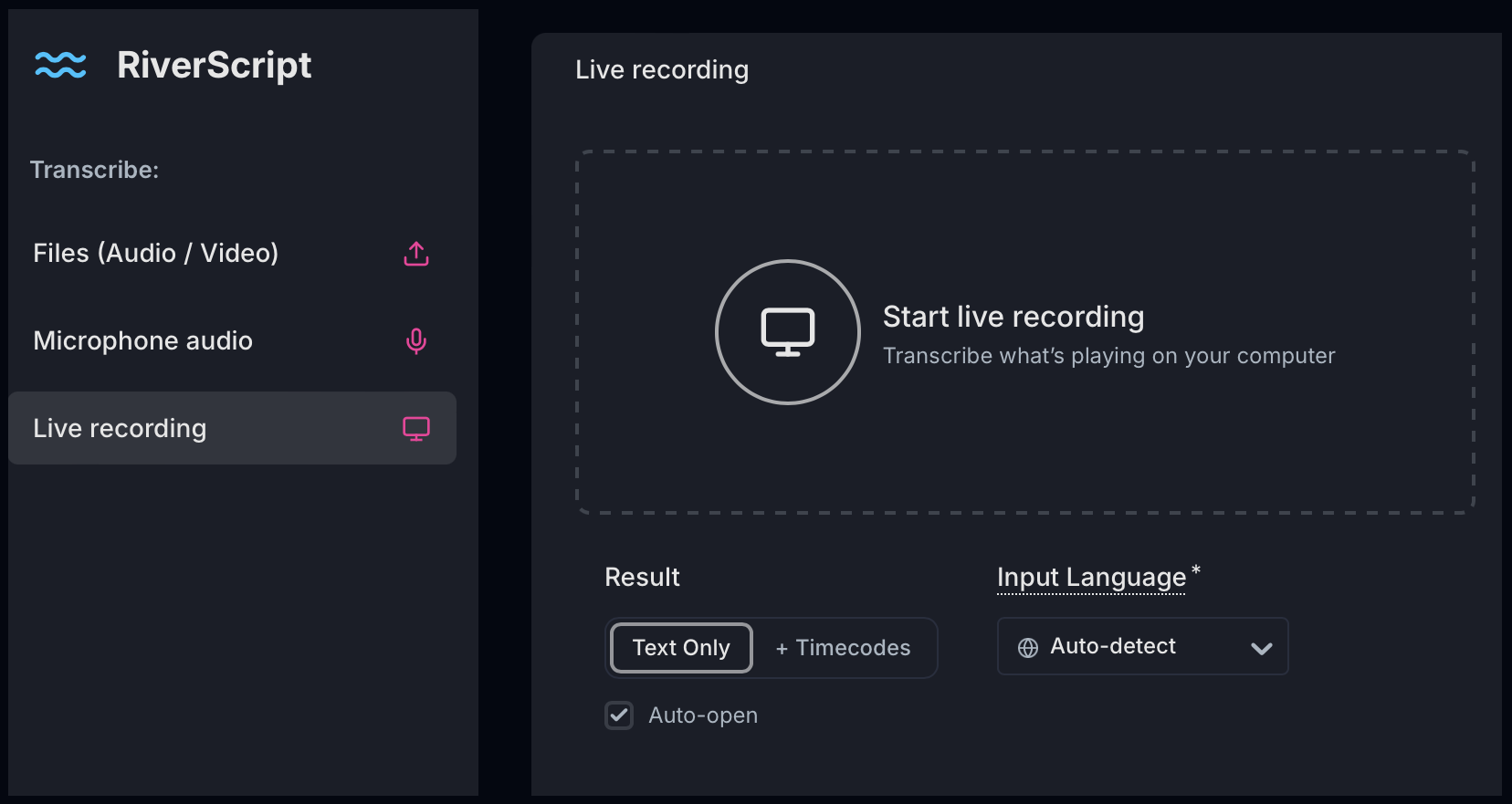
In RiverScript Desktop client, open the Live Recording tab from the left sidebar.
-
Click the Start Live Recording button in the center of the window.
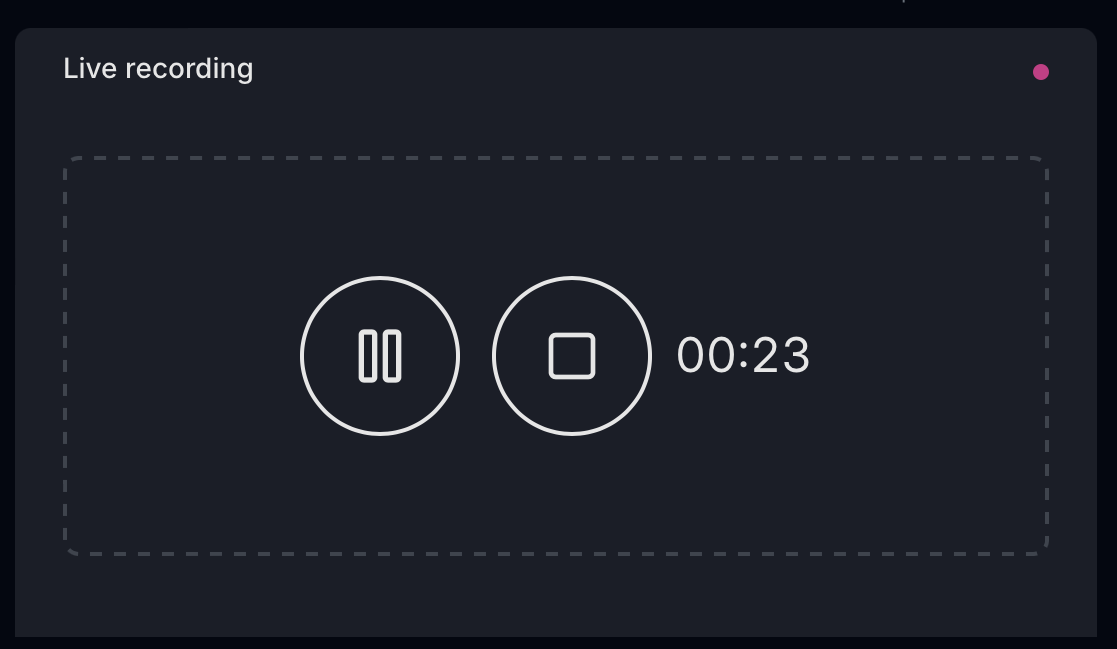
- When you're finished recording, click Stop.
-
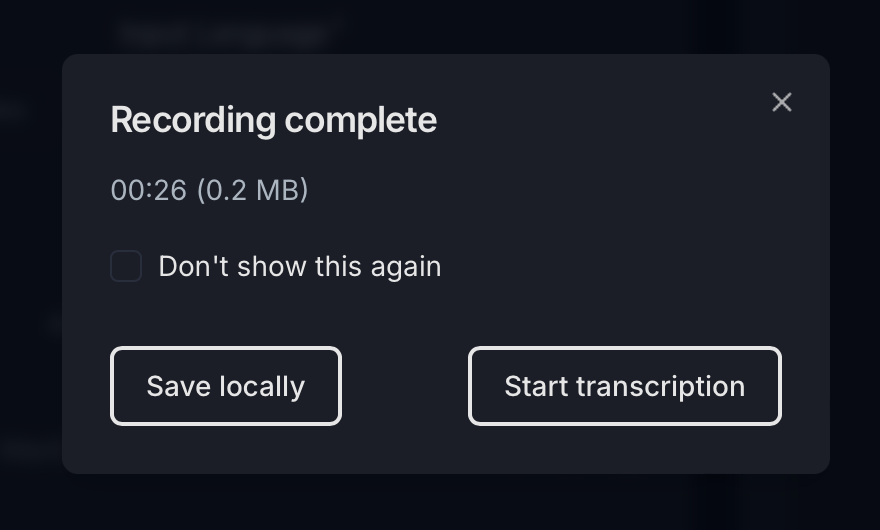
When the dialog appears, click Save locally to save the recorded audio file to your Mac.
-
If you also want to transcribe the recorded audio or translate it into other languages, click Start transcription instead of Save Locally in the same dialog.
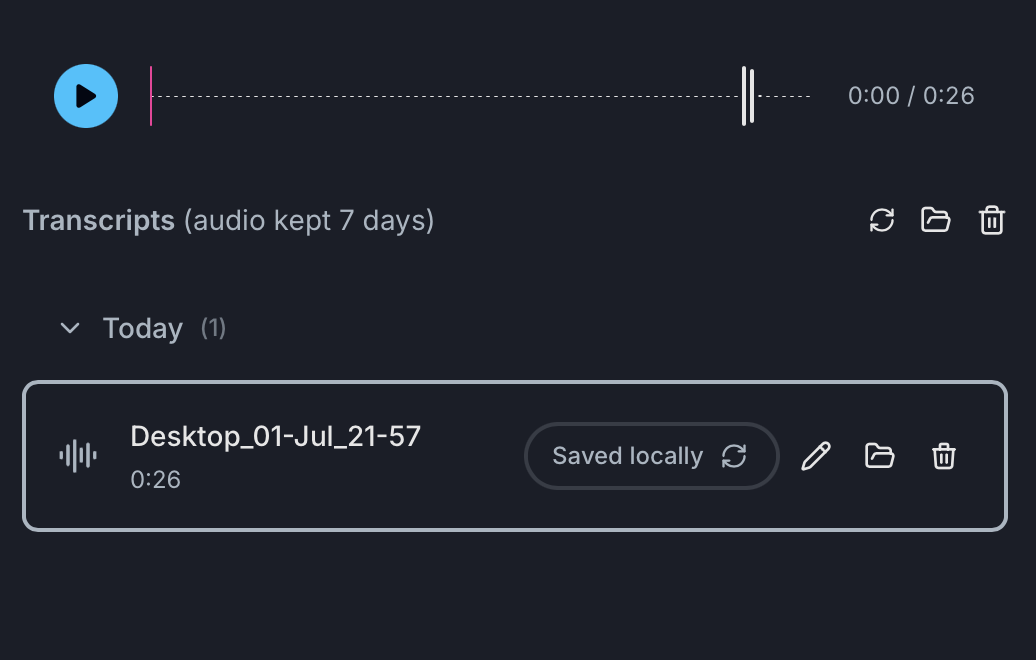
- System audio recording is ready!
-
With the RiverScript desktop application, you can record internal computer audio such as group calls in Zoom/Teams (without any additional bots), or private calls.
-
If needed, you can turn these recordings into notes using the built-in AI chat.
-
You can also record academic interviews and lectures, then transcribe them and turn them into summaries.
-
RiverScript can also separate different speakers and generate timestamped subtitles for podcasts.
How to install RiverScript Desktop client on macOS to record internal audio
To record internal audio on a Mac, you'll need to install the free desktop version of the RiverScript AI workflow from the download page. Apple's policies don't allow system audio to be recorded directly from a browser, so it can only be recorded using a separate desktop application.
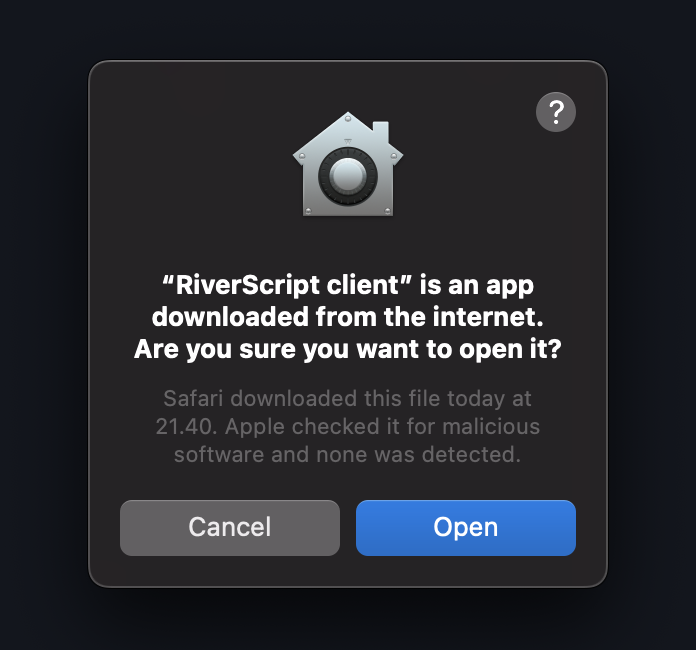
- Open RiverScript Desktop client installer. When the dialog appears, click Open.
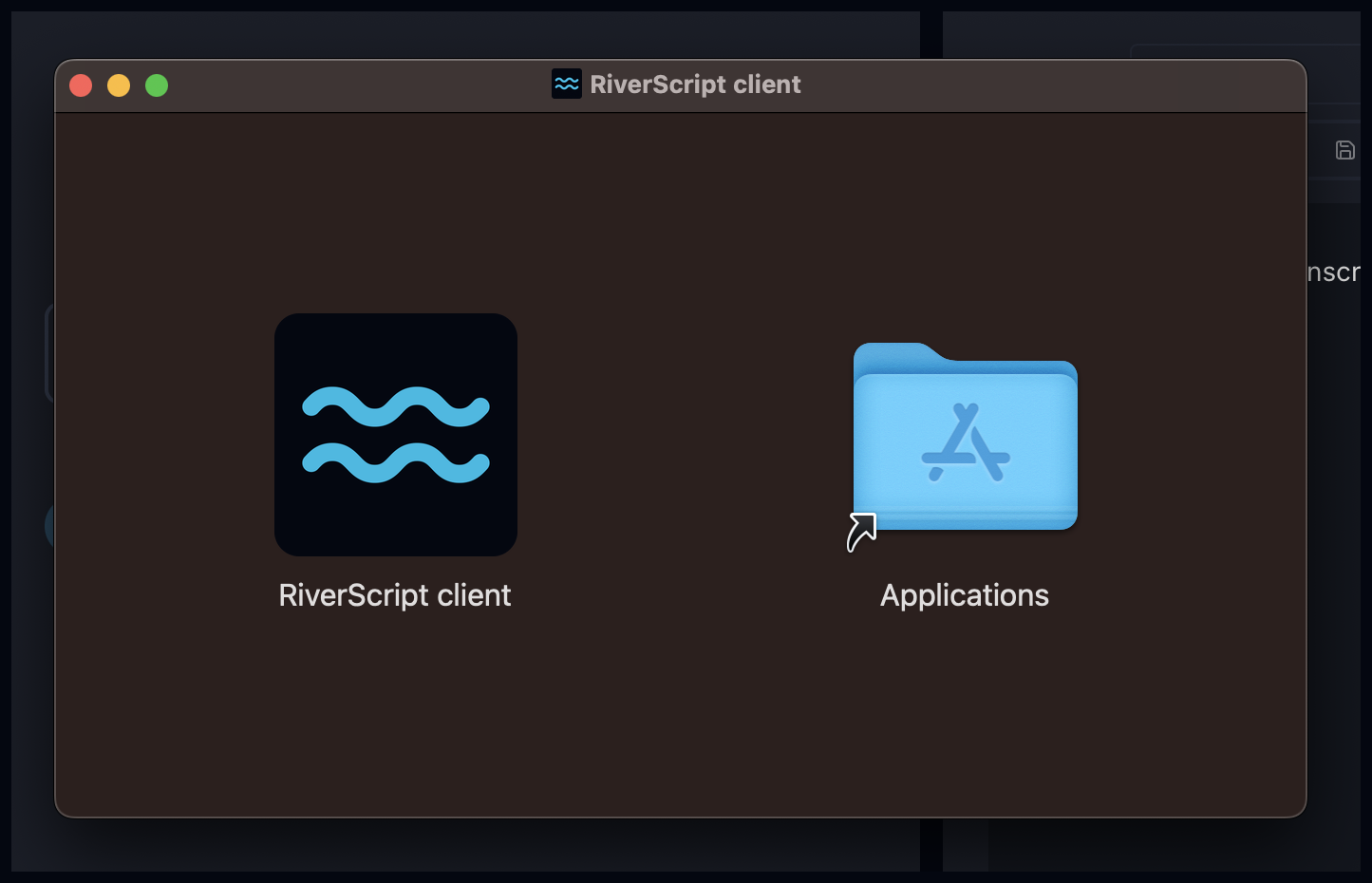
- In the next window, click and hold the RiverScript icon on the left, then drag it into the Applications folder on the right. Your Mac desktop audio recorder is now installed.
- Next, open the RiverScript Desktop app and sign in using your Google account or simply by entering your email address. If you sign in with your email address, you'll receive a sign-in link in your inbox to access your RiverScript account on your Mac.
Enjoy using Live Recording! You can now record your Mac's system audio without using QuickTime, as well as take advantage of many other useful AI features.
Advantages of RiverScript Desktop client for Apple
- Captures any audio playing on your computer.
- Can record audio directly from your browser.
- Processes files 3-5x faster because it isn't limited by browser restrictions.
- Live Recording supports continuous recording for up to 4 hours.
- Can transcribe internal audio on Mac into text, and also supports audio files and large video files up to 50 GB.
- Can even record calls and interviews made on your computer.
F.A.Q.
Record Internal Audio on macOS
Install RiverScript Desktop client and record sound from any application