Convert online lectures you can’t download or live classes into text and AI study guides – even as an attendee
Transcribe undownloadable lectures into text. Chat with your lectures, click key moments, and listen to specific topics.
RiverScript makes online learning materials accessible and saves time
Want to transcribe lectures? You’ve come to the right place – RiverScript has created a great solution for that. The RiverScript app is an AI transcription platform and system audio recorder for Mac and Windows, as well as a smart converter that turns speech into accurate, searchable text. It has several specially designed AI Sync Models for AI transcription of audio and video into text. Our app extracts the lecturer’s speech and converts it into text without false matches, as far as today’s AI technology allows – even when the speech contains specialized terminology. It also has an AI chat that searches for and extracts any information the lecturer mentioned during a lecture or webinar. You only need to ask the chat a question instead of searching through the text yourself. The software is available for both Mac and Windows on the download page.
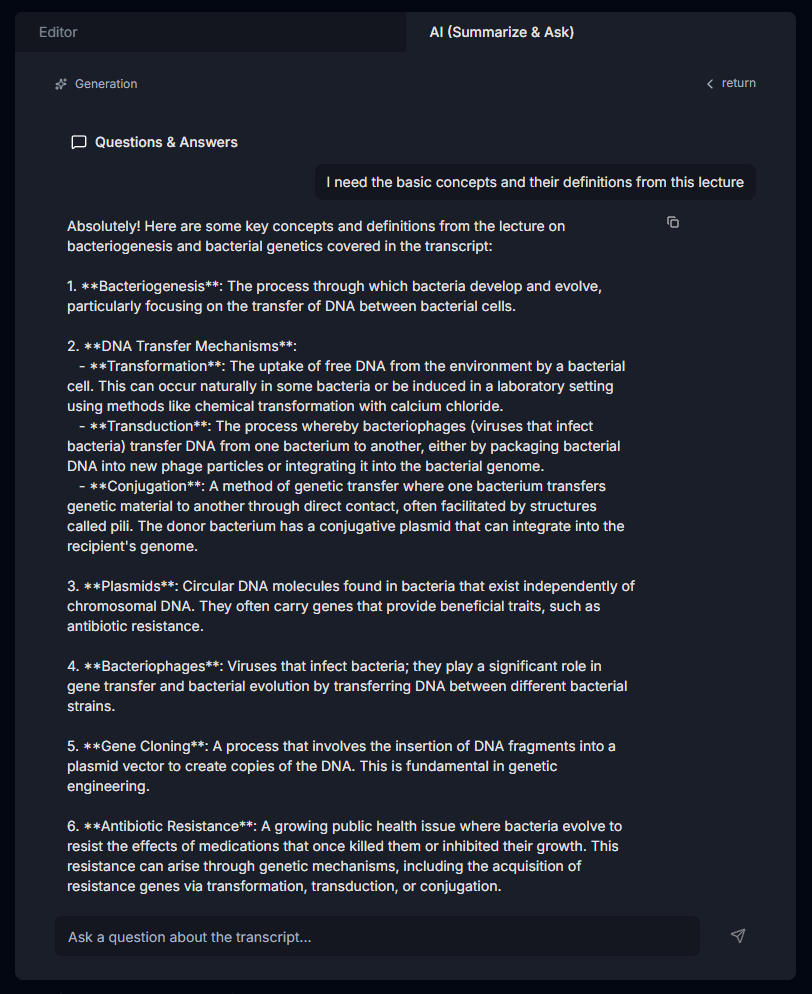
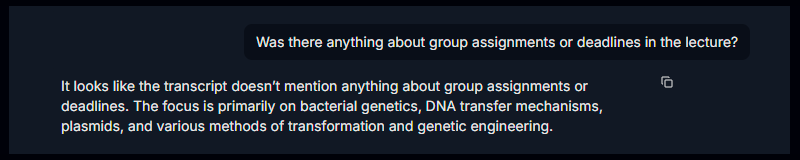
Get notes, summaries, definitions of terms, quotes about group assignment deadlines, and condensed explanations of scientific theories. You can also translate online lectures from foreign languages into your native language and listen to specific topics by clicking the timestamps. We hope our AI workflow streamlines the university learning process and gives students more time for real life.
Our desktop client can also be useful for students who are hard of hearing, international students and language learners, as well as students who find it difficult to focus on a lecturer’s speech for long periods of time, such as students with ADHD. Our app makes the content of any lecture accessible to all students. In return, we hope that students will respect the university’s intellectual property and use our app only for their own learning in a way that works for them and follows the rules established by their educational institution.
If you cannot download online lectures to turn them into text for personal study, or if you are attending live classes, you can record lectures and capture lectures using RiverScript’s Live Recording Transcription feature.
Choose what you want to get from the lecture – either structured text with paragraphs or subtitles with timestamps. Start the lecture on Panopto, Blackboard, Kaltura, or Canvas, start the recorder, and have a coffee (unless there are interactive mini-quizzes you need to complete). RiverScript will then convert the lecture audio into accurate text, allowing you to study the content whenever and however it suits you – for example, by reading it or creating AI notes. Even if the professor tracks your every action and engagement with the content, and this affects your grade, they will see that you watched the lecture from beginning to end.
RiverScript gets terms right without false matches
Even Standard Sync Model (OpenAI Whisper v3 + Deepgram Nova-2) is usually enough for most complex tasks. This is because we have developed our own technology for processing incoming audio before sending it to the AI transcription model, as well as technology for filtering the transcript text returned by the model. Before you receive the final searchable text, the speech goes through a long chain of transformations. We tested the model on long medical university lectures, so if your lecture contains Latin, chemical formulas, or specialized slang, RiverScript will handle that well too. However, specifically for professional terminology and critical tasks where every word matters, we recommend using Premium Sync Model (ElevenLabs Scribe v2 + Deepgram Nova-3). The model is based on the best speech recognition technology available today and can even recognize complex abbreviations and professors with strong accents, completely without false matches.
If you first want to learn how to install the RiverScript app and record system audio for transcription, we recommend reading the separate guides for Windows and Mac.
How to turn online lectures into study guides with an AI workflow
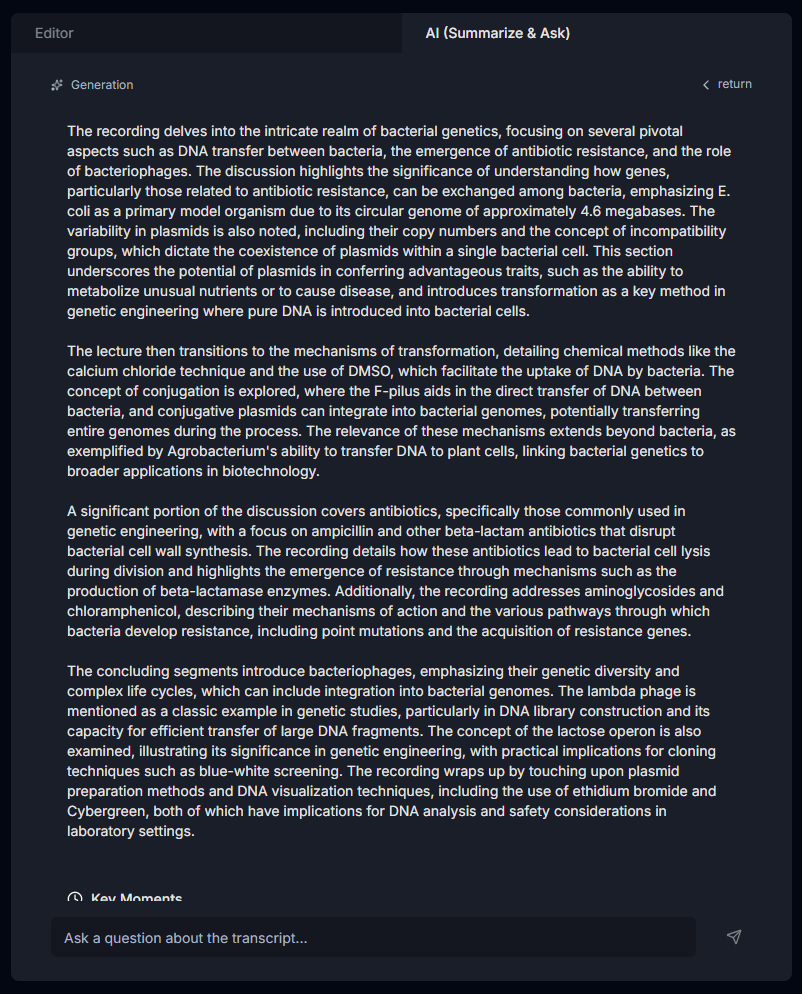
Get a deep summary
To quickly find out whether this is the lecture you need and what it covers, read the automatically generated deep summary. Go to the AI (Summarize & Ask) tab in the upper-right corner of the editor. Select your language and click Generate. You can regenerate the summary in different languages as many times as needed and ask any questions about the lecture’s content in AI Chat. This is especially useful if the lecture contains a lot of filler – AI will give you only the facts.
Create your own "Eternal Lecture Archive"
To preserve knowledge that may be useful in the future – for example, when taking your final state exams – send your notes to your Notion archive, social media, or messaging apps using the Share button in the lower-right corner of the Editor. Alternatively, click Copy above the editor and paste the text into Obsidian, for example. You can also download the lecture transcript and its translations in PDF, DOCX, and TXT formats. If you selected webinar transcription with subtitles, you can also download them as SRT and VTT files. You can also share a link to the transcript with your classmates to discuss its ideas together. This is also done through Share: RiverScript creates a separate web page containing the transcript that can be accessed through the link.
Translate online classes from languages around the world
You can choose any of 100 languages into which you want to translate the transcript. RiverScript delivers high-quality, accurate AI translations of lectures containing a wide range of professional terminology, at the same level as ChatGPT, because it directly uses an AI model from OpenAI.
Unlike ChatGPT, however, RiverScript app does not get lazy halfway through a long translation: it translates the entire text, does not condense the content or cut it off in the middle, and preserves its structure even when you have recorded or uploaded a very large file up to 8 hours long. You can switch between different language versions of the same lecture with a single click using the language selector below the editor.
All of this makes RiverScript an excellent tool for streamlining your studies and freeing up more time for your personal life.
F.A.Q.
Turn lectures into AI study guides
Install RiverScript Desktop client. Transcribe online classes as a participant.