Capture online lectures with an AI audio recorder on Mac & Windows as an attendee
Record online lectures as a participant and study more effectively
Student lecture AI recorder for efficient study
RiverScript Desktop client is AI software that can capture internal audio without a microphone, so your lecture recording doesn't include room noise, echo, or keyboard clicks like a recording made with a voice recorder placed next to your computer. It then saves the audio locally as an MP3 file on your Mac or Windows PC. You get a high-quality recording of the lecturer's voice for studying that sounds clear instead of like it was recorded "inside a barrel." It is perfect for listening while jogging or driving whenever it is convenient for you, as well as for transcribing into notes that you can read later.
Desktop app records courses, webinars, and university lectures for free, either directly from an open browser tab or from any other app installed on your PC. Just click Start in Live Recording, and you no longer need to search for and configure a virtual audio cable alternative that constantly breaks or stops working. You also no longer have to feel awkward as if you are spying on someone, because no website or app can physically know that you are recording online class audio for personal use that you paid for yourself. You can download RiverScript Desktop client from the download page.
If you have any questions about installing the app or recording lectures on your computer, see our complete guides for Windows or Mac.
How to use RiverScript for acing your classes and exams
If you want to get the most out of the RiverScript workflow, this part of the article is for you. RiverScript Desktop client can do much more than just record your computer's internal system audio.
Get a lecture transcript
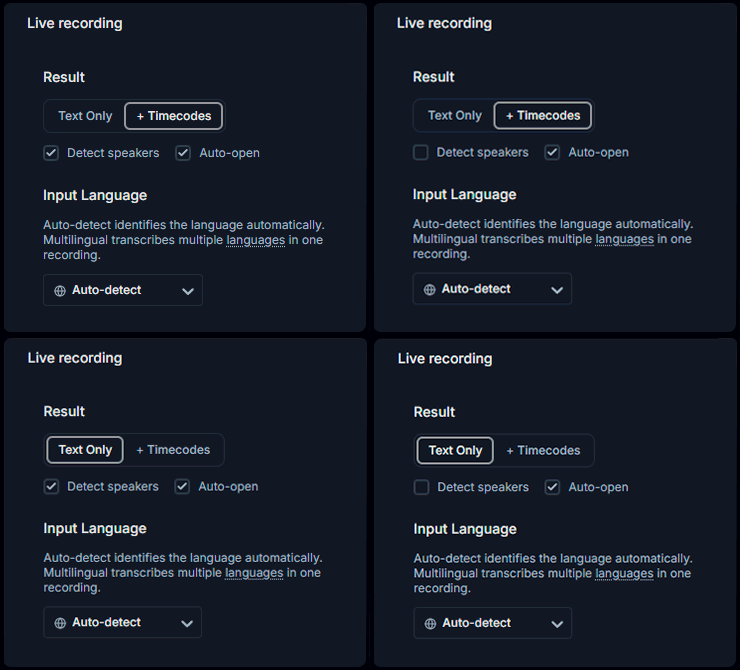
RiverScript has useful features such as adding clickable timecodes to a lecture transcript, separating different speakers, and labeling them by name. This is especially useful if you are recording a lecture with several instructors or recording an online panel discussion.
Please note that the Detect Speakers feature is available only to Premium plan users.
Summarize online classes
The built-in AI (Summarize & Ask) feature gives you an automatically generated lecture summary and a list of Key Moments with clickable timestamps, so you can jump directly to the part you want to listen to. This is useful when preparing for exams because you don't have to listen to a 2-hour lecture again if you already have a ready-made summary. You can also ask AI chat about any information mentioned in the lecture, whether it's lab assignment deadlines or a list of terms and definitions mentioned by the instructor.
Study with lectures from around the world
You can get useful and important information in 100 languages because RiverScript can translate online classes with high quality. RiverScript can translate transcripts from recorded or uploaded audio and video into 100 languages using an OpenAI model, so you get ChatGPT-level translation quality without the length limits of AI chats. At the same time, our engineer-tuned AI Models can translate long lectures and save you time – something students rarely have enough of.
Edit, download, and share with your classmates
You can edit the transcript and download it in different formats to use as subtitles for an educational video, as an idea for a social media blog post, or for your personal archive. You can also use the Share button to send the transcript or its translation to your classmates.
Record your own voice whenever you need to
This workflow can also record your microphone whenever you need it. For example, during a live lecture, the lecturer may ask a question and you may want your own answer to be included in the recording too.
While Live Recording is already running, simply enable the Mic checkbox in RiverScript Desktop client. Your microphone will then be mixed with the system audio into the same recording. When you no longer need to record your own voice, uncheck Mic and RiverScript will continue recording only the lecture audio.
F.A.Q.
Record courses, webinars, and lectures from your browser or any other app
Install RiverScript Desktop client. Capture online classes as an attendee.