How to record meeting audio as a guest - Zoom and more
Get audio from Zoom, Teams or Google Meet
Software for team calls, classes & interview capture – without a bot
RiverScript Desktop client records meetings audio if you always miss important webinar details or want to take notes during lectures. It provides an autonomous workflow that is compatible with Mac and Windows and records everything you hear on your computer.
This software is an alternative to bots and outdated meeting agents for Zoom, Teams and Google Meet. It is an acceptable and safe way to record meetings as a participant directly to your local computer for personal use. The app can also transcribe audio into high-quality text using AI. This means you can not only listen back to your recordings but also read through them.
The RiverScript desktop app records using the built-in Live Recording tool. Recording is performed consistently from multiple sources: system audio – everything other participants say (what you hear through your speakers or headphones) and your microphone input, meaning everything you say, if microphone recording is enabled.
Even if you move to breakout rooms, the recording continues uninterrupted. That's because the desktop meeting recorder works independently of both third-party meeting applications and your web browser.
You can also enable or disable microphone recording during Live Recording at any time, even while a recording is already in progress. Download and launch the Desktop client for your Windows or macOS from the download page to try it yourself.
General guide to recording meetings with RiverScript Desktop on all operating systems
The setup process and system audio recording guide differ slightly between operating systems, so we recommend following the dedicated guides for Windows and Mac. However, the general principles below apply to all platforms and will help you record meetings without any difficulty.
The only thing you need to decide is whether you want to record only what other participants say or capture the entire conversation, including your own microphone input.
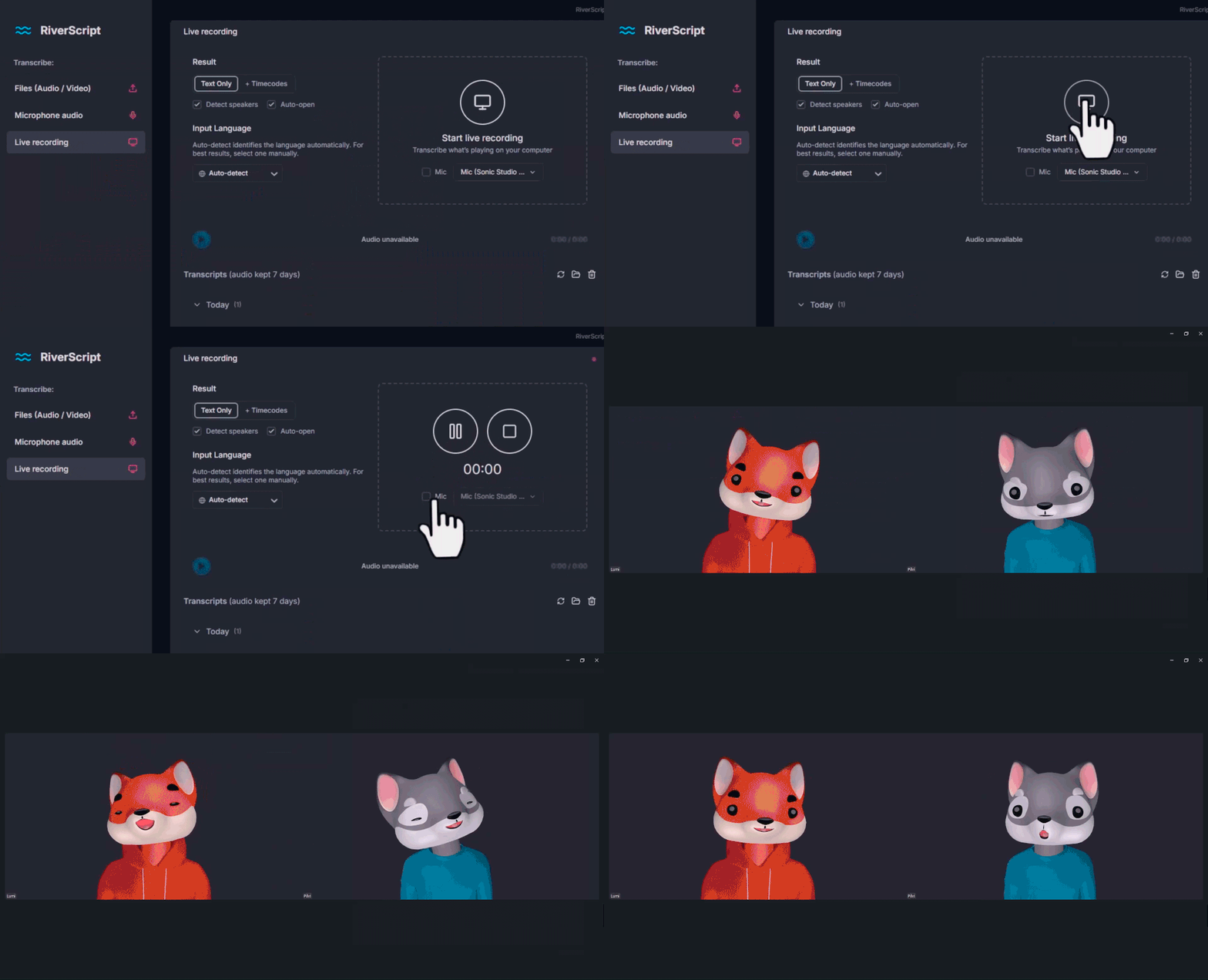
If you plan to record your own voice, choose the microphone you want to use from the list before starting the recording. To include your microphone in the recording, make sure the Mic checkbox is enabled. You can click Start Recording before or after enabling it. A checkmark indicates that microphone recording is active.
You can turn microphone recording on or off at any time during the meeting whenever you need.
Please note that enabling or disabling the microphone in RiverScript only controls whether your microphone audio is included in the recording. It does not mute or unmute your microphone in the meeting application you are using.
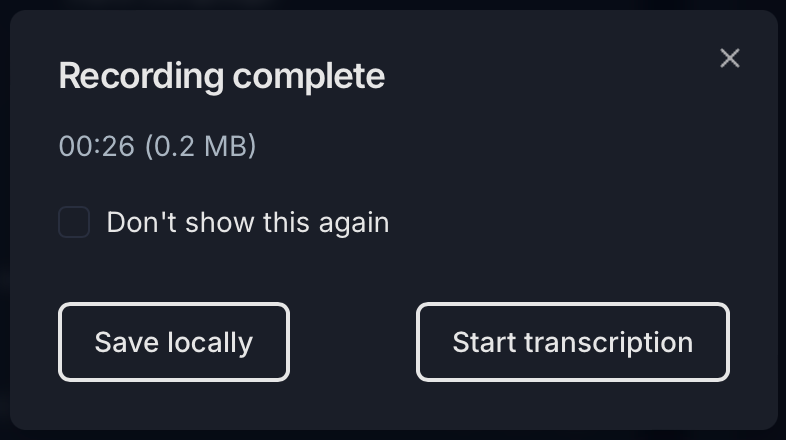
If you are using the app only for recording and do not need a transcription, click Save locally in the pop-up window after the recording is finished. The audio file will be saved to your computer.
To open its location, click the folder icon next to the file name.
RiverScript is designed for every conversation participant, not just the host
Before RiverScript, the most common solutions were meeting assistants and browser extensions. Old tools typically require integrating a dedicated bot. Neither meeting bots nor browser extensions can record internal computer audio because they operate only within specific applications – effectively in a sandbox – without access to your system audio.
They also offer more limited functionality, as only the meeting host has access to the recordings. You can read a more detailed comparison of these tools here. RiverScript solves this problem by allowing users to record internal computer audio directly.
Obviously, recording meetings with bots is convenient only for the host, such as an employer or a teacher. For attendees – such as employees or students – it is often far less convenient. Even if the organizer shares a link and password to a recorded Zoom meeting or lecture, the recording is usually available only for playback, not for downloading. In addition, access is often temporary, forcing users to review the material quickly and under unnecessary time pressure.
RiverScript Desktop client is designed for every meeting participant, not just the host. Every participant can record the audio and, if needed, transcribe it into text, regardless of who organized the meeting.
F.A.Q.
Record team calls, Microsoft Teams classes or Google Meet interviews
Install RiverScript Desktop client. Record meeting audio as a guest.